
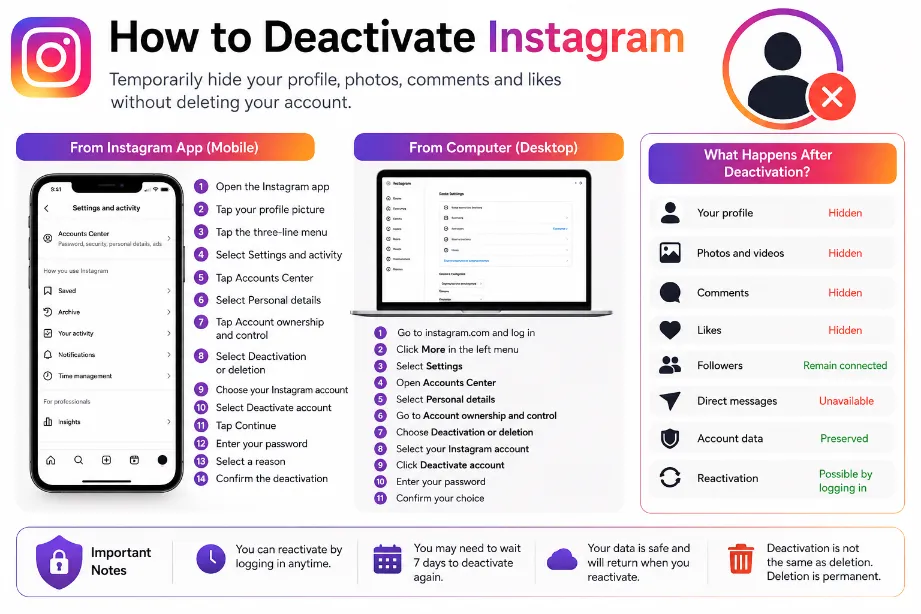
To deactivate Instagram, you can temporarily hide your profile, photos, comments, and likes without permanently deleting your account. Instagram gives users the option to pause their account and return later using the same login details.
The deactivation process works through Instagram’s Accounts Center, which you can access from the Instagram app or website.
What Happens After You Deactivate Instagram?
Deactivation temporarily removes your Instagram profile from public view. Your account data remains connected to your profile, so you can return later and restore access.
| Account Feature | After Deactivation |
|---|---|
| Instagram profile | Hidden |
| Photos and videos | Hidden |
| Comments | Hidden |
| Likes | Hidden |
| Followers | Remain connected |
| Direct messages | Account becomes unavailable |
| Account data | Preserved |
| Reactivation | Possible by logging in |
Your followers generally cannot find your profile during the deactivation period. Instagram does not permanently erase your posts or account information through temporary deactivation.
How to Deactivate Instagram From the App
You can deactivate your Instagram account directly from the mobile app by following these steps:
- Open the Instagram app.
- Tap your profile picture in the bottom-right corner.
- Tap the three-line menu in the top-right corner.
- Select Settings and activity.
- Tap Accounts Center.
- Select Personal details.
- Tap Account ownership and control.
- Select Deactivation or deletion.
- Choose your Instagram account.
- Select Deactivate account.
- Tap Continue.
- Enter your Instagram password.
- Select a reason for deactivation.
- Confirm the deactivation.
Instagram may show additional prompts before completing the process. Follow the instructions displayed on your screen to finish the request.
How to Deactivate Instagram on a Computer
Instagram also allows account deactivation through a web browser.
Follow these steps:
- Visit Instagram and sign in.
- Open More from the left-side menu.
- Select Settings.
- Open Accounts Center.
- Select Personal details.
- Go to Account ownership and control.
- Choose Deactivation or deletion.
- Select your Instagram profile.
- Pick Deactivate account.
- Enter your password.
- Confirm your choice.
The same Instagram account can later return after you sign in again.
How Long Can You Deactivate Instagram?
Instagram has changed its account-management rules over time, so the exact options shown in Accounts Center can vary. In many cases, Instagram limits temporary deactivation to once within a seven-day period.
This means you may need to wait before deactivating the account again after reactivating it.
How to Reactivate a Deactivated Instagram Account
Reactivating Instagram usually takes only a login.
- Open the Instagram app or website.
- Enter your username, email, or phone number.
- Enter your password.
- Sign in.
- Wait for Instagram to restore your profile.
Your photos, followers, likes, and other account information should return with your profile.
Deactivate Instagram vs Delete Instagram
Temporary deactivation and permanent deletion serve different purposes.
| Deactivate Instagram | Delete Instagram |
|---|---|
| Temporary account break | Permanent account removal |
| Profile becomes hidden | Account is scheduled for deletion |
| Posts remain connected to the account | Account data may be permanently removed |
| You can return by logging in | Recovery has a limited period |
| Useful for taking a social media break | Useful for leaving Instagram permanently |
Deactivate Instagram makes more sense for a temporary break. Account deletion suits users who no longer want their Instagram profile.
Can You Deactivate Instagram Without Deleting It?
Yes. Instagram provides a separate Deactivate account option inside Accounts Center. This option hides your account rather than permanently removing it.
Your profile, posts, comments, and likes remain connected to the account. Logging back into Instagram can restore your profile.
Can You Deactivate Instagram From the Accounts Center?
Yes. Accounts Center manages several account controls across Meta services, including Instagram account ownership and deactivation.
The usual path is:
Instagram → Settings and activity → Accounts Center → Personal details → Account ownership and control → Deactivation or deletion
Instagram may change menu labels or their placement after app updates, so the wording on your device can differ slightly.
Can You Deactivate Instagram Temporarily?
Yes. Temporary deactivation lets you take a break from Instagram without removing your account permanently.
It can help you:
- Hide your profile for a period.
- Keep your existing photos and videos.
- Keep your followers.
- Return to the account later.
- Avoid permanently deleting your Instagram data.
Does Deactivating Instagram Delete Your Followers?
No. Temporary deactivation does not normally remove your followers. Your follower connections remain linked to your account.
After reactivation, your profile should return with the follower list associated with your account.
Does Deactivating Instagram Delete Photos?
No. Temporary deactivation hides your Instagram content rather than permanently deleting it.
Your posts, reels, comments, likes, and other profile information remain connected to the account during the deactivation period.
Can Someone See Your Instagram After Deactivation?
Your profile becomes unavailable to other Instagram users during temporary deactivation. Other users generally cannot open your profile or view your posts through the deactivated account.
Some previously sent messages or interactions may still appear differently in other users’ accounts, so deactivation should not be treated as a method for removing every trace of past activity.
Why Can’t I Find the Deactivate Account Option?
The option can be difficult to locate because Instagram places it inside Accounts Center rather than the main profile settings.
Try this route:
- Open Instagram.
- Go to your profile.
- Open the menu.
- Tap Settings and activity.
- Open Accounts Center.
- Tap Personal details.
- Select Account ownership and control.
- Tap Deactivation or deletion.
Also check that you have selected the correct Instagram profile if several Meta accounts appear inside Accounts Center.
What to Do Before Deactivating Instagram
A few preparations can make the process easier:
- Save important photos or videos.
- Check your login email and phone number.
- Make sure you remember your password.
- Review important direct messages.
- Download a copy of your Instagram information if needed.
- Check other accounts that use Instagram for login access.
These steps can help prevent problems during your social media break.
Final Thoughts
The easiest way to deactivate Instagram is through Accounts Center. Select your Instagram profile, open Deactivation or deletion, and choose the temporary deactivation option. Your profile and content can remain stored while your account stays hidden.
For a short social media break, deactivation gives you a way to step away without permanently removing your Instagram account.
Can I deactivate Instagram from my phone?
Yes. The Instagram mobile app provides access to account deactivation through Accounts Center.
Can I reactivate Instagram after deactivation?
Yes. Sign in again using your Instagram login details.
Will my Instagram followers disappear after deactivation?
No. Temporary deactivation does not normally remove your follower connections.
Will my Instagram posts disappear forever?
No. Temporary deactivation hides your content. Permanent deletion follows a different process.
Can I deactivate Instagram without deleting my account?
Yes. Select Deactivate account rather than Delete account inside Accounts Center.
How frequently can I deactivate Instagram?
Instagram may restrict how frequently an account can be temporarily deactivated, with a seven-day restriction commonly applied.