
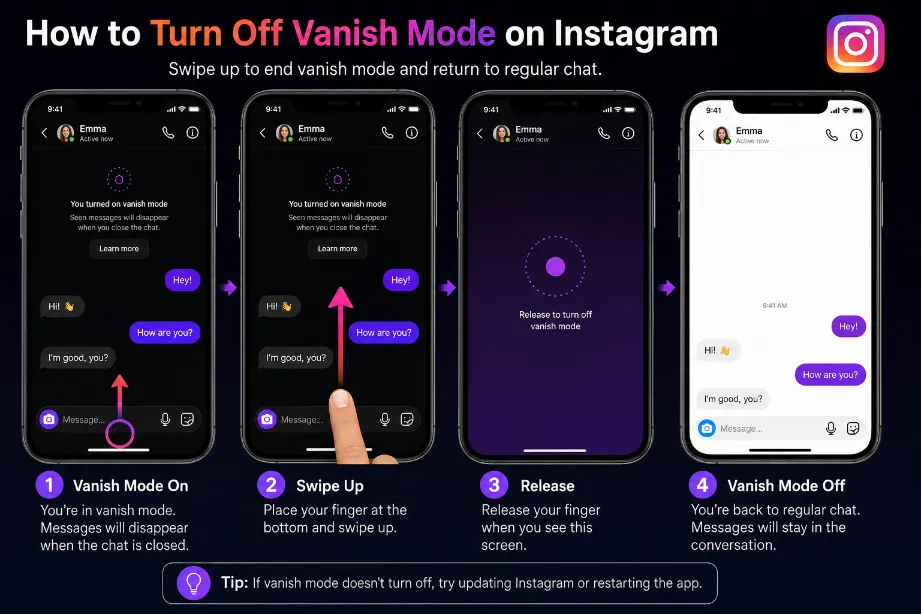
You can turn off Vanish Mode on Instagram directly from the chat where it is active. Open the Instagram conversation, swipe up from the bottom of the chat, and release your finger. The screen should return to the regular chat view, and new messages will remain in the conversation instead of disappearing.
What Is Vanish Mode on Instagram?
Vanish Mode is an Instagram chat feature that makes messages disappear after the chat participants leave the conversation or after the messages have been viewed, depending on the chat settings.
It can be useful for temporary conversations, but some users prefer regular Instagram messages because they want their chats to remain available.
Here are the main points:
| Feature | Regular Instagram Chat | Vanish Mode |
|---|---|---|
| Messages remain in chat | Yes | No |
| Temporary messages | No | Yes |
| Chat background | Normal | Changes appearance |
| Manual activation | No | Yes |
| Can turn off manually | Not needed | Yes |
How to Turn Off Vanish Mode on Instagram
Follow these steps to disable the feature:
- Open the Instagram app on your phone.
- Tap the Messages icon.
- Open the conversation using Vanish Mode.
- Place your finger near the bottom of the chat screen.
- Swipe up on the screen.
- Release your finger after the Vanish Mode screen changes.
- The chat should return to its regular appearance.
After this, Instagram should return the conversation to its standard messaging mode.
How to Turn Off Vanish Mode on Instagram iPhone
The process on an iPhone remains simple:
- Open Instagram.
- Tap the DM icon.
- Select the chat using Vanish Mode.
- Swipe upward from the bottom of the conversation.
- Release your finger.
- Check the chat for the normal messaging interface.
If Vanish Mode remains active, close the conversation and open it again. You can also update Instagram through the App Store and retry the swipe gesture.
How to Turn Off Vanish Mode on Instagram Android
Android users can also disable Vanish Mode through the chat screen.
- Launch Instagram.
- Open your direct messages.
- Select the relevant conversation.
- Swipe up from the lower section of the chat.
- Release your finger.
- Check for the normal chat screen.
The exact interface can vary slightly across Instagram app versions, but the swipe-up gesture remains the main method.
How to Know Vanish Mode Is Off
A few visual signs can help you check the chat:
- The chat returns to its regular appearance.
- The temporary-message interface disappears.
- New messages remain in the conversation.
- You no longer see the Vanish Mode screen effect.
- The chat behaves like a standard Instagram DM.
If the conversation still shows the temporary messaging interface, repeat the swipe-up gesture.
Why Does Instagram Keep Turning On Vanish Mode?
Vanish Mode generally requires a swipe-up gesture inside a supported chat. Accidental activation can happen during normal scrolling or messaging.
Try these steps:
- Open the conversation again.
- Swipe up from the bottom and release.
- Avoid dragging upward inside the chat repeatedly.
- Close and reopen Instagram.
- Update the Instagram app.
- Restart your phone if the feature keeps appearing.
Can You Turn Off Vanish Mode for One Chat?
Yes. Vanish Mode works at the conversation level, so you can turn it off inside the specific Instagram DM where it appears.
You do not need to change a general Instagram privacy setting for every conversation. Open the affected chat and use the swipe-up gesture to return to regular messaging.
Do Messages Reappear After Turning Off Vanish Mode?
Messages that disappeared during Vanish Mode generally do not return simply because you disabled the feature. Turning Vanish Mode off changes the chat back to regular messaging for new messages.
For that reason, save any information you need before using temporary messaging.
What Happens After You Turn Off Vanish Mode?
After disabling the feature:
- New messages use the regular Instagram DM system.
- Future messages can remain in the conversation.
- The temporary chat appearance disappears.
- You can send text, photos, videos, GIFs, and other supported DM content normally.
- The conversation returns to its standard messaging behavior.
Vanish Mode vs Regular Instagram Messages
| Option | Vanish Mode | Regular Chat |
|---|---|---|
| Temporary messages | Yes | No |
| Messages remain available | No | Yes |
| Manual activation | Yes | No |
| Suitable for saved conversations | No | Yes |
| Easy to disable | Yes | — |
Vanish Mode Not Turning Off? Try These Fixes
If the swipe-up gesture does not work, try the following solutions:
Update Instagram: Open the App Store or Google Play Store and install the latest available Instagram version.
Restart the app: Close Instagram completely and open it again.
Restart your phone: A simple device restart can fix temporary app glitches.
Check your internet connection: Switch between Wi-Fi and mobile data and retry the chat.
Clear Android cache: Android users can clear Instagram’s app cache through phone settings.
Reinstall Instagram: Remove the app and install it again if the problem remains.
Does the Other Person Know You Turned Off Vanish Mode?
The other participant can see the chat return to its normal messaging state. Instagram may also show a chat notification related to changes in Vanish Mode.
Vanish Mode works as a shared chat feature, so changing its status can affect the appearance of the conversation for both participants.
Can You Prevent Accidental Vanish Mode Activation?
There is no separate Instagram setting that permanently locks the swipe-up gesture. The best option is to avoid swiping upward from the bottom edge of a DM.
If you activate Vanish Mode by mistake, swipe up again to return to regular messaging.
Final Answer
To turn off Vanish Mode on Instagram, open the affected DM and swipe up from the bottom of the chat screen. Release your finger, and Instagram should return to the normal messaging interface. If the feature remains active, update Instagram, restart the app, and try again.
How do I turn off Vanish Mode on Instagram?
Open the Instagram DM using Vanish Mode and swipe up from the bottom of the chat. Release your finger after the interface returns to the normal chat view.
Why can’t I turn off Vanish Mode on Instagram?
An outdated app, temporary glitch, or incorrect swipe gesture may cause the issue. Update Instagram, restart the app, and try the swipe-up action again.
Does turning off Vanish Mode delete messages?
Turning off the feature does not restore messages that already disappeared. New messages can use the regular chat format after Vanish Mode ends.
Can I turn off Vanish Mode from Instagram settings?
You generally do not need a separate settings menu. The feature can be switched off directly inside the affected DM.
Is Vanish Mode available on Instagram Messenger?
Vanish Mode is an Instagram messaging feature available in supported chats and accounts. Instagram may change its messaging interface or feature availability through app updates.